Disciple.Tools User Documentation
Disciple.Tools Admin Workflows
Workflows in Disciple.Tools let you automate what happens when records are created or when fields are updated. You define a trigger, optional conditions, and actions. When the trigger fires and all conditions are true, Disciple.Tools runs the actions for you.
What Are Workflows?
A workflow has three parts:
- Trigger: When the workflow runs. Either when a record is created or when one or more fields are updated.
- Conditions: Optional rules that must all be true (for example, “Status equals Active” or “Assigned to has a value”). If you add conditions, the workflow runs only when they are satisfied.
- Actions: What Disciple.Tools does when the trigger and conditions are met. Examples include updating a field, adding a comment, connecting to another record, or running a custom action.
Workflows are defined per record type (for example Contacts or Groups). You can create your own workflows and enable or disable built-in default workflows.
Why Use Workflows?
- Automatically set a field when another field changes (for example, set a milestone when a contact is added to a group).
- Add a comment or notification when something important happens.
- Keep linked fields in sync (for example, group type and health metrics).
- Reduce manual steps so your team can focus on ministry.
Table of Contents
- Accessing the Workflows Page
- Workflows Page Overview
- Creating a Workflow
- Editing and Deleting Workflows
- Triggers and Conditions
- Actions
- Default Workflows
- Troubleshooting
Accessing the Workflows Page
To open the Workflows settings:
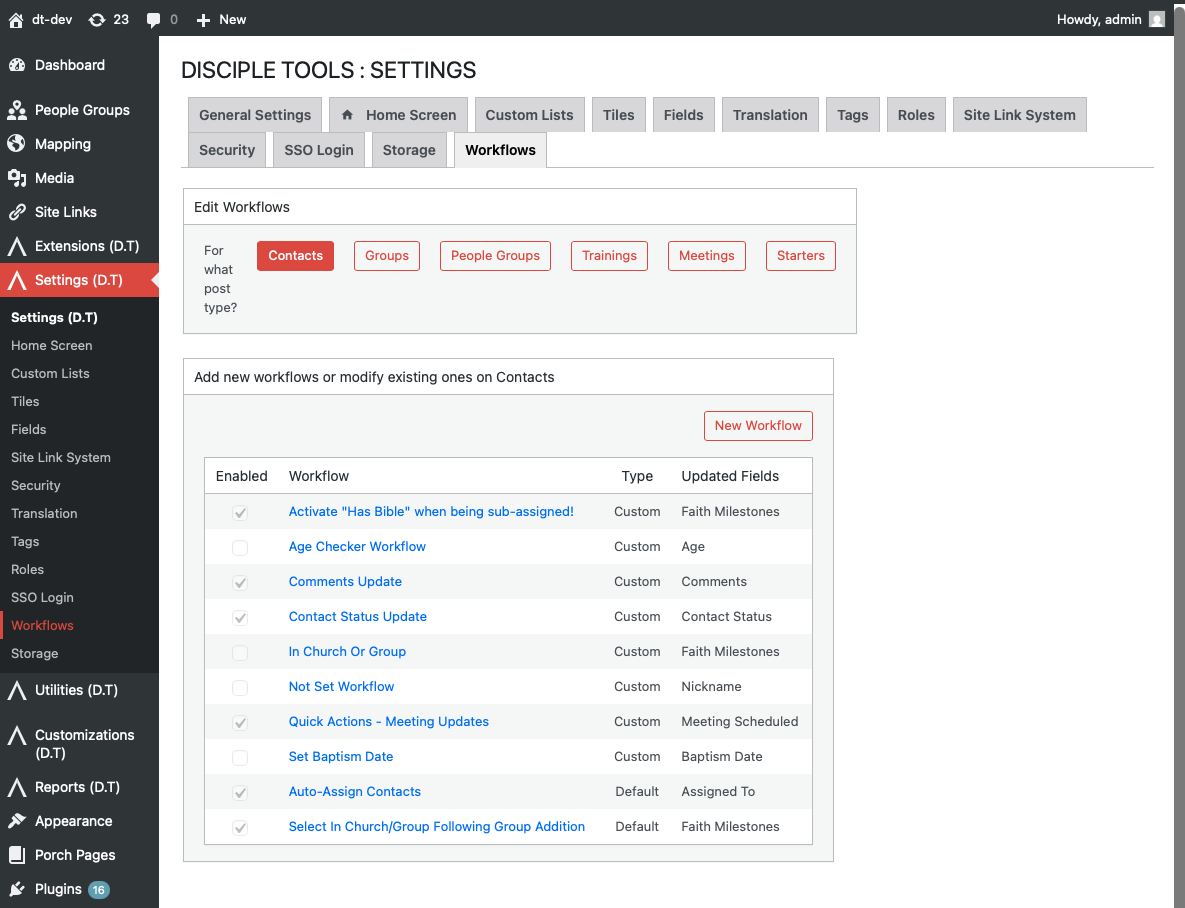
- Go to the WordPress Admin dashboard (click the settings icon ⚙️ on desktop or ☰ on mobile, then select Admin).
- In the left sidebar, click Settings (D.T).
- Click the Workflows tab.
For more detail and alternative paths, see Accessing the Workflows Page. For other Settings (D.T) options, see Settings (D.T) overview.