Disciple.Tools User Documentation
Workflow Triggers and Conditions
Triggers define when a workflow runs. Conditions narrow that down so the workflow runs only when certain rules are true.
Triggers
You choose one trigger per workflow.
Record Created
The workflow runs when a new record of the selected type is created (for example when someone creates a new Contact or Group). All condition checks use the new record’s data. Use this when you want to do something as soon as a record exists (for example set a default status or add a comment).
Field Updated
The workflow runs when one or more fields on an existing record are updated. Disciple.Tools only runs the workflow if at least one of the fields you use in your conditions was part of that update (or, for a newly created record, has a value). This avoids running the workflow when unrelated fields change. Use this when you want to react to a specific field change (for example when Status changes to “Active” or when Assigned to is set).
Conditions
Conditions are optional. If you add conditions, all of them must be true for the workflow to run. You can add multiple conditions; each one is a row in the conditions table.
Condition Types
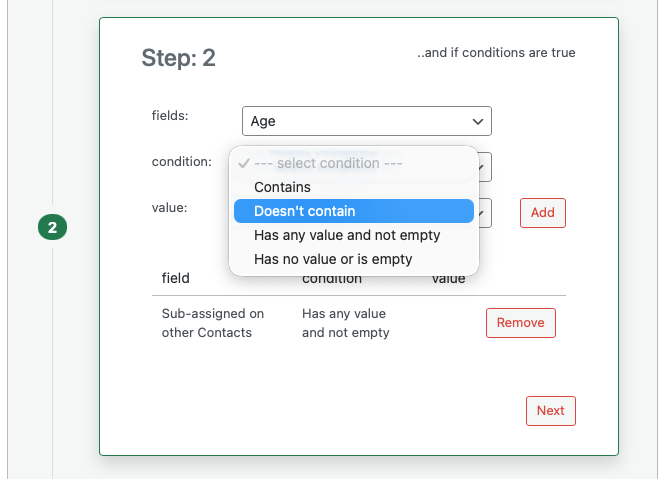
The condition dropdown depends on the field you select. Different field types support different conditions.
- Equals: The field value equals the value you enter or select.
- Doesn’t equal: The field value does not equal the value you enter or select.
- Greater than: The field value is greater than the value you enter. Available for number and date fields.
- Less than: The field value is less than the value you enter. Available for number and date fields.
- Greater than or equals: The field value is greater than or equal to the value you enter. Available for number and date fields.
- Less than or equals: The field value is less than or equal to the value you enter. Available for number and date fields.
- Contains: The field contains the value (for example text contains a word, or a multi-select list includes an option). Available for text and many list or connection-style fields.
- Doesn’t contain: The field does not contain the value.
- Has any value and not empty: The field is set and not empty. You do not enter a value for this condition.
- Has no value or is empty: The field is empty or not set. You do not enter a value for this condition.
Choosing a Condition Value
For most conditions you must enter or select a value (for example the status to compare to, or a number). For Has any value and not empty and Has no value or is empty, no value is needed; the value field is hidden.
The way you enter the value depends on the field type: some use a text box, some a dropdown of options, some a date picker, and some a search or typeahead for records or locations. Use the control that appears after you select the field and condition.
Multiple Conditions
If you add more than one condition, the workflow runs only when every condition is true. There is no option to run when “any” condition is true; all must match.