Disciple.Tools User Documentation
Voice Messages
Record and attach voice messages to records in Disciple.Tools. Voice messages provide a convenient way to document interactions and leave audio notes.
Overview
Voice messages can be recorded directly in the “Comments and Activity” section of any record (contacts, groups, etc.). This functionality requires S3 storage to be enabled by your administrator.

Recording a Voice Message
Access the Recorder
- Navigate to any record’s detail page
- Locate the “Comments and Activity” section
- Click the microphone icon to the left of the “Submit comment” button
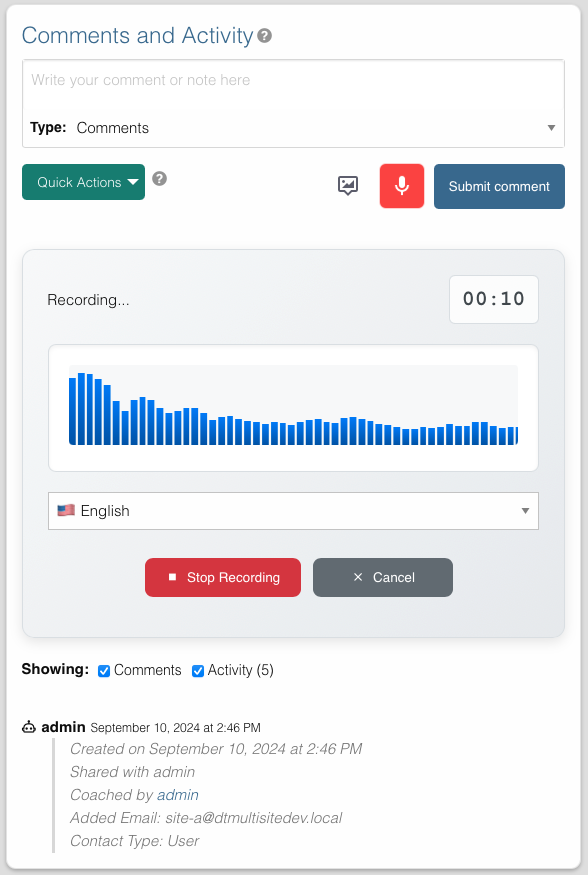
Record Your Message
- Grant Permission: On first use, allow your browser to access your microphone
- Start Recording: Click “Start Recording”
- Timer begins counting
- Sound wave visualization shows audio is being captured
- Stop Recording: Click “Stop Recording” when finished
- Preview: Use the audio player to listen to your recording
- Save or Cancel:
- Click “Save Recording” to upload and post
- Click “Cancel” to discard the recording
Audio Format
Recordings use browser-supported formats:
- Primary: WebM/Opus (most common)
- Fallback: OGG/Opus or MP4 (depending on browser)
- No conversion: Files saved in native browser format
The system automatically selects the best supported format for your browser.
Playback and Management
Viewing Voice Messages
Once saved, voice messages appear in the activity feed with:
- Audio player controls
- Recording duration
- Timestamp
- User who recorded it
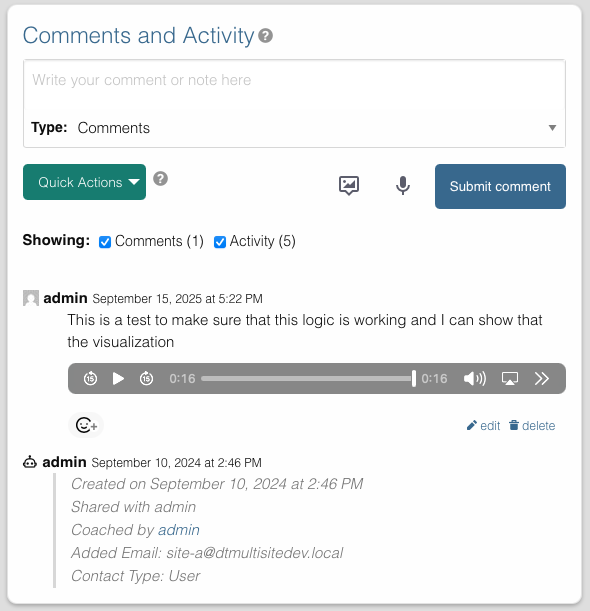
Anyone with access to the record can listen to the voice messages.
Deleting Voice Messages
To delete a voice message, delete the comment containing it:
- Locate the voice message in the activity feed
- Click the delete icon on the comment
- Confirm deletion
Deleting the comment permanently removes the voice message from storage.
Mobile Recording
Voice messages work on mobile devices with:
- Touch-optimized interface
- Built-in microphone support
- Responsive audio player
- Same recording workflow as desktop
Security and Privacy
- Private Storage: Voice messages are not publicly accessible
- Encrypted Transfer: All uploads use HTTPS
- Access Control: Only authorized users can listen
- Temporary URLs: Secure, time-limited playback links
Best Practices
- Test Microphone: Verify microphone access before important recordings
- Quiet Environment: Record in quiet locations for better audio quality
- Keep It Brief: Shorter messages are easier to manage and review
- Review Before Saving: Use preview to ensure recording quality
- Privacy Awareness: Don’t record sensitive personal information